The Hepsia web hosting CP
Domain Manager
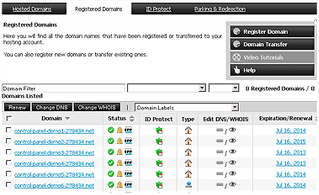 The Domain Manager gives you one place to register, transfer, and look after multiple domain names and websites. That may sound like a small convenience, but it makes a big difference when you are dealing with more than one site. cPanel, for example, has traditionally had very limited support for managing multiple independent websites from one account, and it does not have a dedicated Domain Manager section like this. With the Hepsia web hosting Control Panel, you can create and manage several completely separate websites under one account. You do not have to jump between different Control Panel logins just to handle your domains, support tickets, or billing.
See how the Domain Manager works | Play Video
File Manager
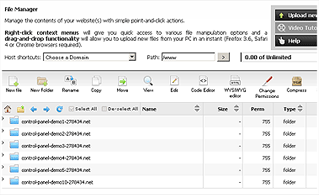 The File Manager is one of those features you appreciate the first time you use it. Because it supports drag 'n' drop uploads, you do not need separate FTP client software just to put files on your website. Find the files on your PC, drag them into your browser, and the upload starts right away. You can also move files from one location to another inside the File Manager using the same simple drag 'n' drop approach, which makes everyday file management much less of a chore.
See how the File Manager works | Play Video
Email Manager
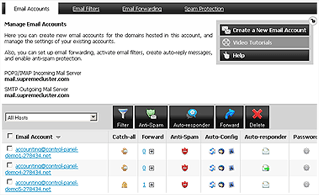 Hepsia's Email Manager covers the everyday things you need to do with your email without making you dig through complicated settings. You can forward messages, set up automatic replies with a click, create email filters, and take steps to keep unwanted junk messages under control. When it comes to reading your mail, you can use the desktop email client you already prefer or access your mailboxes through webmail instead.
See how the Email Manager works | Play Video
500+ Unique Features
The Domain Manager, File Manager, and Email Manager are only a few of the tools you will find inside the Hepsia CP. There is also a simple way to work with MySQL and PgSQL databases through our Database Manager. When you want to see how your website is performing, the Stats Manager provides detailed information about the figures that matter. Hepsia also includes a generous collection of free extras, such as a site installer, a web applications installer, a PHP frameworks installer, free-of-charge website skins, and a sitemap generator. On top of that, you get a range of practical administration and marketing tools, including an .htaccess Generator, a PHP Configuration tool, a URL Redirection tool, a Password Protection tool, and a Domain Parking & Redirection tool. There are also web accelerators and plenty of other features to explore. The Hepsia hosting Control Panel also has a dedicated SSL Certificates section, where you can obtain SSL certificates for your websites.
When you have a little time, it is also worth looking at our Hepsia vs. cPanel comparison. It gives you a closer look at how the two web hosting control panels handle the kinds of tasks you are likely to deal with when running a website.
| SHARED HOSTING | KVM VPS | OPENVZ VPS | SEMI-DEDICATED PLANS | DEDICATED SERVERS |
| Unlimited storage | 80 GB storage | 80 GB storage | Unlimited storage | 240 GB storage |
| Unlimited bandwidth | 4 TB bandwidth | 3 TB bandwidth | Unlimited bandwidth | 10 TB bandwidth |
| 1 website hosted | Unlimited websites hosted | Unlimited websites hosted | Unlimited websites hosted | Unlimited websites hosted |
| 30-Day Free Trial | 24/7/365 support | 24/7/365 support | 30-Day Free Trial | 24/7/365 support |
| start from $4.95/mo | start from $24.00/mo | start from $24.00/mo | start from $19.95/mo | start from $76.50/mo |
Questions about hosting control panels? See our FAQ.
A narrative guide to control panels.
In This Story:
The Conversation Begins What a Control Panel Really Does The First Login One Place for Almost Everything Domains Without the Confusion Files Without the Headache Email Is Part of the Job Websites Without the Technical Drama When You Need Databases The Panel Should Not Fight You Hepsia and the Traditional Control Panel Approach Where Hepsia Feels Different Security in the Background Backups When You Need Them When Your Office Is a Phone Why Beginners Notice the Difference What Experienced Users Appreciate The Quiet Advantage Where Other Panels Still Make Sense When the Website Gets Bigger The Real Test of a Control Panel The EndingThe Conversation Begins
It started, as these conversations often do, with a question that sounded much easier than it really was.
“Why does web hosting have to be so complicated?”
My friend had been working on his company website for several days. The website itself was coming along nicely. The logo was finished. The pages were written. The domain name was registered. He had even managed to get the contact form working.
Then he logged into his hosting account.
His expression changed immediately.
“What am I looking at?”
I laughed because I knew exactly what he meant.
There was nothing wrong with his intelligence. He was perfectly capable of running a business, understanding finances, talking to customers, and making decisions that involved far more money than his website would ever cost.
But hosting control panels have a strange habit of making ordinary tasks feel technical.
You want to create an email address. You find yourself wondering which section to use.
You want to upload a file. Suddenly you are looking at directories, permissions, archive tools, and unfamiliar terminology.
You want to add another domain. Now you are wondering whether you need an addon domain, an alias, a subscription, another account, or something else entirely.
That was when I explained why I had become so fond of Hepsia.
Not because it was the most complicated control panel.
Quite the opposite.
For many everyday hosting customers, the real advantage is that it tries to keep the important parts of website management together instead of making you feel as though you are operating a small data center from your kitchen table.
Hepsia was designed as an all-in-one hosting management environment, bringing domains, websites, files, email, databases, statistics, applications, and other account functions into one interface. That basic design philosophy is one of the main reasons it feels different from more traditional control panels.
And that is where our conversation really began.
What a Control Panel Really Does
Before comparing control panels, it helps to forget the brand names for a moment.
A hosting control panel has one basic job: it gives you a way to manage the technical parts of your hosting account without having to perform every task manually from the command line.
That sounds straightforward until you think about how many different jobs are hiding underneath a normal website.
There are files to upload.
There are domains to connect.
There are DNS settings to manage.
There are email accounts to create.
There are databases behind many applications.
There are backups.
There are security settings.
There are redirects.
There are statistics.
There may be software installations, SSL certificates, password protection, scheduled jobs, PHP settings, and several other tasks that appear only when the need arises.
A good control panel takes all of that complexity and puts a sensible door in front of it.
A poor one can make you feel as though you have been handed the keys to a machine room and told to figure it out.
That distinction matters more than many people realize.
Most website owners do not want to spend their evenings learning the internal architecture of their hosting platform. They want to manage their website.
That is where Hepsia has a particularly strong argument.
The First Login
My friend clicked into Hepsia for the first time.
He stared at the screen for a few seconds.
Then he said something surprisingly useful.
“I can see what everything is for.”
That sounds like a small compliment.
It is not.
Interface design matters enormously when software is used for practical work.
Hepsia's own documentation places a strong emphasis on an intuitive interface, with common hosting tasks presented through recognizable management areas rather than forcing users to remember complicated procedures.
That is especially valuable for someone who does not live inside a hosting account every day.
A developer may remember technical paths and server terminology without thinking about them. A small business owner usually does not. The owner might log in once every few weeks because a new employee needs an email address or because a new domain has just been registered.
When that happens, familiarity becomes important.
You do not want to relearn the system every time you return.
You want to look at the screen and think, “There it is.”
That is one of Hepsia's greatest strengths.
It tries to make hosting management feel more like using an organized desktop application and less like remembering a series of instructions.
One Place for Almost Everything
Now we reached the part that mattered most to me.
I asked my friend to imagine the alternative.
Suppose the domain is managed somewhere else.
The billing information is in another account.
The hosting is inside a separate interface.
Email has its own dashboard.
Support requires another login.
And the website itself has its own administrative area.
None of those systems has to be bad.
Yet every extra login adds a little friction.
Every separate interface creates another thing to remember.
Every additional dashboard increases the chance that a simple task turns into a search for the right place to do it.
Hepsia takes a different approach by putting major elements of the hosting account into one environment. Domain management, email, file handling, databases, statistics, website tools, and other services can be reached from the same control panel.
That does not mean every function in a modern hosting business magically becomes one button.
It means the user has a central place to start.
And that is a surprisingly powerful idea.
For a person running one website, it saves time.
For somebody managing several websites, it can save much more.
Domains Without the Confusion
My friend had three domain names.
One was for the main company.
Another had been registered years earlier because he did not want someone else to take it.
The third was a newer name he planned to use for a separate project.
This is where control panels often reveal how they were designed.
Was the system built around one website?
Or was it designed to let someone think about an entire web presence?
Hepsia's Domain Manager is built around the second idea.
The panel supports management of multiple domains from a central location, including operations such as domain registration and transfer, DNS-related management, parking, and connecting domains with websites.
That becomes particularly useful when a small business starts accumulating domains.
And businesses accumulate domains surprisingly quickly.
There is the main company name.
There is a shorter version.
There is the country-specific domain.
There is the campaign domain.
There is the domain you bought because someone suggested it would be a good idea.
Before long, what looked like a single website has become a small collection of online properties.
Having one management environment for them can make the whole collection much easier to understand.
Files Without the Headache
Then came the file manager.
I told him to open it.
“Now upload something,” I said.
He dragged a file from his computer into the browser.
The upload started.
He looked at me.
“That's it?”
“That's it.”
Hepsia includes a drag-and-drop File Manager intended to let users upload, move, copy, delete, and manage website files directly from the browser without requiring a separate FTP client for ordinary tasks.
That may sound trivial to someone who has spent years working with websites.
It is not trivial to a business owner who just wants to replace an image, upload a PDF, add a verification file, or move a folder.
There is also something psychologically useful about being able to see the files in a familiar way.
The website becomes less mysterious.
Instead of thinking, “I need a technician to put this on the server,” the owner can think, “I can do that myself.”
That difference can change the way somebody manages a website.
They stop being completely dependent on somebody else for small jobs.
And small jobs are exactly what consume time when every little change requires an email to support or a message to a developer.
Email Is Part of the Job
A website owner often thinks about hosting in terms of pages and visitors.
But for a business, email may be even more important.
There is hello@.
There is sales@.
There is support@.
There may be an address for every employee.
Then someone leaves the company, someone else joins, an alias is needed, a forwarder has to be created, or spam suddenly becomes a nuisance.
Hepsia includes an Email Manager for creating and managing mailboxes, forwarding, mailing lists, spam filtering, and other email-related settings.
Again, the important point is not that these things exist.
Other control panels can provide many of the same basic capabilities.
The difference is how naturally the pieces fit together.
My friend could create an email account in the same environment where he managed his domain and website.
He did not have to ask himself where the email service lived.
It lived with the rest of the hosting account.
That seems obvious.
And sometimes the most useful ideas are the obvious ones.
Websites Without the Technical Drama
The next question was predictable.
“What happens when I want another website?”
That is where a panel's philosophy becomes even more visible.
Hepsia supports multiple domains and websites within the same hosting environment, depending on the hosting plan, while keeping those sites manageable from the same central interface.
For someone running several small websites, that can be a very practical arrangement.
Imagine a consultant with one business site, one personal portfolio, and another site for a side project.
Or a family with a business website and two small personal websites.
Or a developer managing several low-traffic client projects.
The alternative can involve hopping between separate hosting accounts or learning several administrative layers.
With a centralized setup, the mental model is simpler.
This is my hosting account.
These are my domains.
These are my websites.
These are my email accounts.
These are my databases.
Everything belongs somewhere in the same picture.
When You Need Databases
Of course, sooner or later, a website stops being just files.
WordPress needs a database.
Joomla needs a database.
Many PHP applications need databases.
Custom web applications certainly do.
For a newcomer, the database can feel like one of those areas where it is safer not to touch anything.
That is understandable.
A database sounds important because it is important.
But management should not have to feel like an archaeological expedition.
Hepsia provides database management tools for technologies including MySQL and PostgreSQL, depending on the hosting environment, and brings those controls into the same broader interface used for the rest of the account.
That fits the same philosophy we had already seen.
The user should not have to know every piece of the system's internal architecture before being able to perform an ordinary task.
The panel provides the control.
The hosting customer decides how much of that control to use.
The Panel Should Not Fight You
There is a funny thing about software.
You notice good software less than bad software.
When something works naturally, you simply do the task.
When the interface is confusing, every step becomes memorable.
You notice the missing button.
You notice the strange terminology.
You notice the unexpected screen.
You notice that the setting you need is somewhere completely different from where you thought it would be.
Good control-panel design is therefore not really about making the interface look impressive.
It is about reducing those moments.
That is where Hepsia can have an advantage over more traditional systems.
Its interface was built around the idea that a hosting customer should be able to manage many parts of the account directly, using recognizable tools and relatively straightforward workflows.
That makes a difference when you are tired, in a hurry, or trying to fix something at nine o'clock on a Sunday night.
At those moments, nobody cares whether a control panel has an enormous list of features.
They care whether the feature they need can be found.
Hepsia and the Traditional Control Panel Approach
Now my friend wanted the obvious comparison.
“So is Hepsia better than cPanel?”
I paused.
“Sometimes.”
He looked disappointed.
“That's not the answer I expected.”
“It's the honest answer.”
A control panel is not a car where one model can simply be declared the best for everybody.
Some users want deep server administration options.
Some users want an ecosystem that is widely familiar to hosting technicians.
Some developers prefer a particular workflow because they have used it for years.
Some hosting companies build their support infrastructure around one panel.
Those things matter.
But there is another type of customer.
The person who says, “I don't care which software you use. I just want my website, domains, email, files, and backups to be easy to manage.”
That is where Hepsia becomes particularly interesting.
It was designed less as a collection of specialist administrative screens and more as an integrated hosting environment.
And for many website owners, that can be the more sensible approach.
Where Hepsia Feels Different
The difference becomes clearer when you stop counting features and start thinking about what happens during a normal week.
On Monday, you add a new domain.
On Tuesday, you create an email address.
On Wednesday, you upload a new version of your website.
On Thursday, you install WordPress on a new domain.
On Friday, you check the site's statistics.
On Saturday, you discover that you need a database.
On Sunday, you realize you deleted something and suddenly remember that backups exist.
These are not seven separate technical worlds.
They are seven ordinary hosting jobs.
Hepsia's strength is that it treats them that way.
The panel includes tools for domains, files, email, applications, databases, statistics, security, backups, and other site-management tasks inside one broader environment. Its application installer also provides access to a large selection of popular web applications through an automated installation process.
That is why I would not describe Hepsia's appeal simply as “more features.”
Its stronger argument is organization.
A hundred useful tools scattered around an awkward interface can still feel difficult.
A lot of useful tools arranged in a way that makes sense can feel surprisingly simple.
Security in the Background
Then we got to security.
This is where a control panel should be careful.
Security is one of those subjects where marketing language can become more dramatic than reality.
No control panel can promise that a website will never be attacked.
What it can do is provide sensible tools and security controls that make common risks easier to manage.
Hepsia documentation describes features such as ModSecurity protection and password-protection tools. It also describes restrictions on outgoing connections as part of the hosting platform's security model.
That last point is worth understanding rather than simply treating it as a benefit.
Blocking outgoing connections can help limit what a compromised account can communicate to other servers, but a restrictive security model can also affect applications that genuinely need outbound connections.
That is a good example of why responsible hosting advice should never be reduced to “more security equals better.”
Security has to fit the website.
A well-designed control panel should make protective measures available without making ordinary site management unnecessarily difficult.
Backups When You Need Them
There is an interesting psychological difference between having backups and knowing how to reach them.
People often discover that difference after making a mistake.
Someone replaces the wrong file.
A plugin update goes badly.
A website configuration changes unexpectedly.
A database gets damaged.
The owner starts thinking about yesterday's version of the site with a level of affection normally reserved for old photographs.
Hepsia environments can provide users with access to backups and restore-related tools, and ResellersPanel specifically describes immediate access to daily backups through its Hepsia-based hosting offering.
Again, the exact backup policy depends on the hosting provider.
That part should always be checked before purchasing a plan.
A control panel can make recovery easier, but the quality, frequency, retention, and scope of backups are determined by the hosting service behind it.
Still, bringing backup access into the same management environment makes an important task easier to find when you need it most.
And when something has gone wrong, easy access is a very good feature to have.
When Your Office Is a Phone
My friend laughed when I showed him the mobile interface.
“You're telling me I can actually manage the hosting from my phone?”
“Why would I want to?”
“You won't. Until you're away from your computer and suddenly need to.”
That is usually how these things work.
Hepsia provides a dedicated mobile interface rather than simply shrinking the desktop panel into something barely usable on a small screen. The official Hepsia site describes the mobile version as a full-fledged interface intended for managing the hosting account from a phone.
For a professional developer, that may be a secondary convenience.
For a small business owner, it can be surprisingly useful.
Perhaps an email account needs to be created while traveling.
Perhaps a domain setting needs to be checked while away from the office.
Perhaps a support technician asks you to verify something in the account.
You may not need mobile management often.
But when you do need it, having a usable mobile interface is much better than being locked to a desktop.
Why Beginners Notice the Difference
Experienced website owners sometimes forget what it felt like the first time they opened a hosting account.
They forget that “DNS,” “MX,” “database,” “FTP,” “SSL,” and “PHP” were once words that did not explain themselves.
A beginner does not need less control.
He usually needs control that is easier to understand.
That distinction is important.
A panel that hides everything may feel simple but becomes frustrating once the user wants to do something more advanced.
A panel that exposes everything immediately can feel powerful but intimidating.
The sweet spot is somewhere in the middle.
Hepsia's approach is attractive because it makes ordinary hosting functions visible while keeping them grouped into recognizable management areas.
A new customer can start with simple tasks and gradually discover more advanced controls as the need arises.
That is a much more natural way to learn than receiving a massive technical manual before you are allowed to touch anything.
And perhaps that explains why a person who has never managed a server can become comfortable with the account surprisingly quickly.
What Experienced Users Appreciate
It would be a mistake to assume that an easy interface is only for beginners.
Experienced users tend to appreciate tools that save them from repetitive work.
A developer may already know how to upload files with FTP.
That does not mean he wants to open an FTP client every time he needs to replace one file.
A developer may understand databases perfectly well.
That does not mean he wants to jump through several interfaces for every routine database task.
Someone who manages several domains may know exactly how DNS works.
That does not mean managing five separate dashboards is somehow an enjoyable experience.
Hepsia's attraction for experienced users is therefore less about hiding complexity and more about reducing unnecessary steps.
Its developer-oriented controls also include tools for PHP configuration and performance-related technologies in supported environments, giving more advanced users ways to move beyond the most basic hosting tasks.
That combination matters.
You can have a control panel that feels approachable without making experienced users feel trapped inside a beginner-only interface.
The Quiet Advantage
There is another reason I think Hepsia works well.
It does not constantly demand your attention.
That sounds strange for software, but it is actually a compliment.
The best tools disappear into the background.
You log in.
You make the change.
You leave.
You do not spend twenty minutes wondering which section contains the setting you need.
You do not have to remember which account manages the domain and which account manages the hosting.
You do not have to switch between several unrelated interfaces just to perform a handful of ordinary tasks.
The hosting environment becomes something you use rather than something you have to study.
That is particularly valuable for small business owners because their website is not their actual business.
Their business might be medicine, real estate, consulting, construction, accounting, retail, education, or something completely different.
The website is there to help the business.
The hosting panel should do the same.
Where Other Panels Still Make Sense
At this point my friend was ready to declare Hepsia the winner of everything.
I stopped him.
That would be unfair.
Other control panels have genuine strengths.
Some are deeply established in the hosting industry.
Some have extensive third-party integrations.
Some are very familiar to system administrators and hosting technicians.
Some users simply prefer the way another panel organizes its settings.
And there are technical situations where a particular platform may be the better fit.
That is why I would never tell somebody to choose a hosting company solely because it uses Hepsia.
The server matters.
The hosting resources matter.
Support matters.
Backups matter.
Security matters.
Uptime matters.
Pricing matters.
The applications you intend to run matter.
And the actual limits of the hosting plan matter enormously.
The more accurate argument is a narrower one.
For customers who want a straightforward, centralized way to manage domains, websites, files, email, databases, applications, statistics, and other everyday hosting functions, Hepsia can be a better fit than a more traditional control-panel experience.
That is a strong claim.
But it is a much more useful claim because it tells you who the panel is good for.
When the Website Gets Bigger
A year passed.
My friend's company grew.
The website grew with it.
There were more pages.
There were more employees.
There were more email addresses.
There were more images and documents.
Another domain was added.
Then another.
This is where a control panel has to prove that its simplicity is not merely cosmetic.
It is easy to make a small account look simple.
The real question is whether the interface still makes sense once there is more to manage.
That is where centralized management becomes increasingly useful.
The more pieces you have, the more important organization becomes.
A single domain is easy.
Five domains are manageable.
Ten domains require discipline.
A dozen mailboxes is nothing unusual.
Fifty mailboxes are another matter.
One website is simple.
Several websites create a small administrative ecosystem.
At that point, a panel that lets you see the whole environment from a single place starts to look less like a convenience and more like a necessity.
That is one of the situations where Hepsia's design philosophy becomes increasingly compelling.
The Real Test of a Control Panel
There is an easy way to test a control panel.
Do not start by reading the feature list.
Start by imagining a normal Tuesday.
Your website needs a new email account.
You have to upload a PDF.
You want to add another domain.
You need to create a database for a new project.
You want to install WordPress.
You need to check your statistics.
You want to find out whether a backup is available.
Now ask yourself one question.
How much mental effort should all of that require?
That, more than the number of icons on the screen, is what makes one control panel feel better than another.
Hepsia's case is persuasive because it was designed around the idea of bringing these jobs together. Its documentation describes a centralized environment covering site management, domains, files, applications, email, databases, statistics, security, developer tools, and other functions rather than treating them as unrelated systems.
And when a control panel gets the basics right, something interesting happens.
You stop talking about the control panel.
You simply get on with your website.
The Ending
We were back at the same cafe several months later.
My friend opened his laptop.
He had another domain to add.
He needed a mailbox for a new employee.
There was a website update to upload.
He opened Hepsia, handled the jobs one after another, and closed the laptop.
Then he smiled.
“I remember when I thought hosting was complicated.”
I laughed.
“Hosting is still complicated.”
He looked at me.
“Then why doesn't it feel complicated anymore?”
That was the real answer.
A good control panel does not make the technology underneath the website disappear.
It simply puts a better interface between the user and that technology.
That is why Hepsia can be better than other control panels for a certain kind of hosting customer.
Not because every competing panel is bad.
Not because Hepsia is perfect.
And certainly not because having more buttons automatically makes a control panel better.
Its real strength is much more practical.
Hepsia brings many of the jobs that website owners perform into one environment. Domains, websites, files, email, databases, applications, statistics, security tools, backups, and other hosting functions are organized around the same account rather than forcing the user to think about each one as a separate administrative world.
For the beginner, that can make the first steps less intimidating.
For the business owner, it can make routine work faster.
For the person managing multiple websites, it can make the whole operation easier to understand.
For the experienced user, it can remove a surprising amount of unnecessary clicking and account switching.
And perhaps that is the best way to think about a hosting control panel.
It should not be something you have to admire.
It should be something you can trust yourself to use.
The best control panel is the one that lets you look at a task, understand what needs to happen, do it, and move on with your day.
For many hosting customers, that is precisely where Hepsia has its strongest advantage.
Practical Takeaway
Hepsia is not automatically the right choice for every website, developer, or server environment. Its strongest advantage is its all-in-one approach: it puts many everyday hosting tasks into one place and is designed to be approachable without removing more advanced controls. Before choosing a hosting plan, look beyond the control-panel name and compare the actual server resources, application compatibility, backup policy, security setup, support quality, and the specific features you need for your websites.
FAQ
This FAQ is about the software you use to run the practical side of a hosting account once your website is online. It starts with Hepsia, then looks at the everyday jobs these interfaces handle, what makes one easier to live with than another, and how Hepsia compares with familiar alternatives such as cPanel and Plesk.
FAQ menu
- 1. Hepsia: where the discussion should start
- 2. What you actually do inside a hosting interface
- 3. Files, websites, software, and databases
- 4. Domains, DNS, and HTTPS
- 5. Email management
- 6. Backups, security, and technical settings
- 7. Hepsia compared with cPanel and Plesk
- 8. Which approach makes the most sense?
1. Hepsia: where the discussion should start
1. So, what is Hepsia in plain English?
Hepsia is the online workspace through which you manage a hosting account. Rather than dealing directly with the server every time you need to do something, you log in and use its graphical tools to handle jobs such as websites, domains, files, email, databases, and applications.
2. Why do some people prefer Hepsia to more traditional interfaces?
A lot comes down to how the work is presented. Hepsia is built around the idea that the person sitting at the computer wants to accomplish a job, not study the server first. If you want to add a domain or deal with a file, the interface is there to help you get on with that job rather than making you think like a system administrator.
3. Is it fair to call Hepsia the best?
It is fair to say that Hepsia can be one of the best choices for the right user, particularly on shared hosting, but there is no honest basis for saying it is automatically the best for everybody. Someone who values a simple, integrated experience may like it very much, while another person may have years of experience with cPanel or prefer the way Plesk organizes things.
4. What is the biggest attraction for an ordinary website owner?
It is the feeling that the different pieces belong together. You do not have to think of your website, domain, email, files, and databases as completely separate worlds every time you make a change. They are different parts of the same account, and the interface gives you a place to work with them.
5. Do I have to know Linux to get anything done?
No. You can use Hepsia without knowing how to administer a Linux server from the command line. There are certainly situations where technical knowledge becomes useful, but ordinary jobs do not require you to sit there typing server commands just because you want to manage your own website.
6. Is it practical to use Hepsia when I am away from my computer?
Yes. Hepsia has a mobile-friendly interface, which means you can reach the main management functions from a phone. You may not want to do a major website migration on a small screen, but for checking something or making a quick change, having that access can be very handy.
7. Does using Hepsia mean everything will be easy?
No, and it is worth being realistic about that. The interface can make many tasks easier, but hosting itself can still involve awkward problems. A broken website, a wrongly configured DNS record, or a database problem does not become simple merely because the buttons are nicely arranged.
Back to FAQ menu2. What you actually do inside a hosting interface
8. Why does a website owner need this kind of software at all?
Because a hosting account contains much more than the web pages visitors see. Somebody has to create domains, manage files, set up email, create databases, deal with certificates, and make other changes behind the scenes. A graphical interface puts those jobs somewhere you can reach them without having to operate the underlying server by hand.
9. Is the interface the same thing as the hosting service?
No. This distinction causes a lot of confusion. The hosting company supplies the server, storage, memory, processing resources, network connection, and other parts of the service; Hepsia, cPanel, Plesk, and similar products provide the layer through which you manage what the hosting service makes available to you.
10. Why can two customers using the same software have different options?
Because the host decides what sits underneath it and what customers are allowed to use. One company might enable a particular feature while another leaves it out, or the two accounts might be on completely different server setups. The logo you see when you log in therefore tells you something about the interface, but not everything about the hosting environment.
11. Does a built-in file manager make FTP obsolete?
For some people, almost; for others, not at all. If you only occasionally need to upload a file, the browser-based manager is often all you need. Someone who transfers hundreds or thousands of files regularly may still find FTP or SFTP software much more comfortable, especially when working from a desktop computer.
12. Can a better interface make my website load faster?
Not simply by being a better interface. Your site's speed is affected by the hardware and resources behind the account, the web server, storage, network, caching, software, and the website itself. The management software can make certain performance settings easier to reach, but it cannot turn a slow server into a fast one.
13. Why does the layout matter if the technical functions are basically the same?
Because you have to live with the layout every time you manage the account. Imagine two workshops containing exactly the same tools, except that in one of them everything you use every day is within easy reach, while in the other you keep opening drawers and searching cupboards. Nothing has changed technically, but one is much nicer to work in.
14. Can a hosting interface hide too much from the user?
Certainly. Simplicity is useful until it becomes a dead end. A good interface should make ordinary work understandable while still giving you access to more advanced settings when you genuinely need them. Hiding every technical option may make the first five minutes easier and the next five years much more frustrating.
Back to FAQ menu3. Files, websites, software, and databases
15. What can I actually do with the file manager?
You can work directly with the files stored in the account, including uploading, moving, renaming, and managing them through the browser. That sounds basic, but it becomes valuable when something needs fixing and you do not want to install another program simply to get at one file.
16. Why is direct access to files still important when I use WordPress?
Because WordPress does not contain everything that can affect the website. Its themes, plugins, configuration files, images, uploads, and other material ultimately live on the server. When something goes wrong, being able to reach those files can be the difference between solving a problem quickly and having to ask someone else to do it.
17. Can I install WordPress without doing a manual installation?
Often yes, provided the host offers an application installer. Hepsia includes an installer for supported applications, which can take care of much of the routine work such as placing the software files and setting up the database. The exact process and available applications depend on the hosting company.
18. What is the real benefit of one-click installation?
It is not really about saving one click. A proper installer saves you from a series of small jobs that have to be done correctly and in the right order. For someone who installs software regularly, that can remove a lot of tedious work and also reduce the chance of making a simple setup mistake.
19. What does the database section have to do with my website?
For many sites, quite a lot. Content management systems and other applications commonly store important information in databases rather than ordinary files. The database area is therefore where you may create the database an application needs, create its user, and carry out other management tasks supported by the host.
20. Why would I ever need phpMyAdmin?
Because creating a database is only the beginning. phpMyAdmin and similar tools let you look inside a database, examine tables, import or export information, and run SQL commands. You may never need those functions during normal operation, but when a database problem does appear, having access to them can be extremely useful.
21. Can one account hold more than one website?
That depends on the hosting plan rather than on the interface alone. Where multiple domains are supported, the software gives you a convenient way to organize them, but there will still be limits on the number of sites and on the resources the account can use.
22. Does the interface tell me how many websites I can run?
It may show some of the account limits, but the definitive answer comes from the hosting package and its terms. A screen offering an option to add another domain does not necessarily mean you have unlimited room for additional websites. Storage, CPU, memory, domain limits, and other restrictions can still apply.
Back to FAQ menu4. Domains, DNS, and HTTPS
23. What happens when I add a domain through the hosting interface?
You are telling the hosting environment that another domain should be associated with the account in whatever way the plan supports. From there, the site may have its own directory and settings, and the domain still needs to be pointed correctly through DNS before visitors will reach the intended server.
24. What is DNS, without all the complicated terminology?
Think of DNS as the internet's address book for a domain. When someone types your domain name, DNS helps direct that request to the right service. Different records can point web traffic somewhere, tell email systems where messages belong, or prove that you control the domain.
25. Why is changing a DNS record something I should not do casually?
Because the change can affect several things at once. A small error in the right place can stop a website from being reached, send visitors to the wrong server, or interfere with email. DNS is wonderfully efficient when it is correct and remarkably unforgiving when it is not.
26. Do I have to manage DNS from the same place as my website?
No. Your website can live on one hosting service while DNS is managed somewhere else. This is common, for example, when a domain owner prefers to use a separate DNS provider. The important part is that the records at that provider point to the correct destinations.
27. What does SSL have to do with the hosting interface?
SSL certificates are used to secure the connection between a visitor's browser and the website through HTTPS, and the certificate normally has to be associated with the domain and web service on the server. That is why many hosting interfaces include a section for certificates and HTTPS settings.
28. Does every hosting company handle certificates in exactly the same way?
No. One provider may offer automatic certificates and renewals, another may give you more manual control, and another may provide a separate system altogether. The interface can make the process easier, but the host ultimately determines what is supported on your account.
Back to FAQ menu5. Email management
29. Can I create addresses such as info@mydomain.com from the hosting account?
Yes, when email hosting is included with the plan. You can normally create mailboxes associated with the hosted domain and manage their passwords and other available settings from the same general environment.
30. Is webmail the same thing as having an email account?
No. The mailbox is the account where the messages are stored, while webmail is one way of accessing it. You can read and send messages through a browser using webmail, or connect the same mailbox to a desktop or phone email application.
31. Can I change just one mailbox password?
Normally, yes. The password belonging to an individual email address is separate from the password you use to enter the main hosting account. That means you can usually change one mailbox without changing access to the rest of the account.
32. Where does the email delivery part fit in?
Email delivery involves more than simply creating a mailbox. The domain's mail-related DNS records help other mail systems discover where they should send messages, while the hosting account provides the actual mailboxes when email is hosted there. Both pieces have to agree for the setup to work properly.
33. What if I only need email forwarding and not another mailbox?
Many hosting environments support forwarding or aliases, although the exact options differ between providers. That can be useful when you want mail sent to a public address to arrive in another mailbox without maintaining a separate inbox for the forwarding address itself.
34. Why does email management deserve its own section in a hosting interface?
Because domain email is one of those things people often expect to “just work” until it does not. Creating addresses, changing mailbox settings, dealing with delivery, and checking the relevant DNS records are all separate jobs, and having the necessary tools close together makes troubleshooting much less painful.
Back to FAQ menu6. Backups, security, and technical settings
35. What security tools might I find in a hosting interface?
That depends on the provider and the server setup, but common examples include SSL management, password protection, access controls, firewall-related settings, and tools connected with malware or other threats. Some protection may be provided automatically by the host, so not every security measure will necessarily appear as a button you have to operate yourself.
36. Does the interface protect my website automatically?
No. It can give you useful security tools, and the host may protect parts of the server automatically, but your website can still be compromised through outdated software, weak credentials, vulnerable plugins, or poor configuration. Security is something the hosting environment can help with, not something the interface can guarantee on its own.
37. What should I know about backups before I trust them?
Find out what is actually being copied and, just as importantly, what you are allowed to restore yourself. A host may keep backups for disaster recovery without giving you a convenient self-service restore function, while another may let you restore individual files, databases, or an entire account. “Backups available” does not tell you enough.
38. Why might restoring a backup be different from making one?
Making a copy is straightforward; putting everything back into a working state is a different job. A restore process has to know what should be replaced and how the files, databases, settings, and other pieces fit together. That is why a hosting service can offer backups while still giving customers very different restoration capabilities.
39. Are advanced settings useful if I am not a developer?
Some of them can be. You may never need to touch a PHP version or scheduled task, but when a website requires a particular setting, it is useful to have the option available. The point is not that everyone should use advanced tools; it is that the interface should not leave you helpless when an ordinary website eventually needs one.
40. Can the interface give my application more resources?
Not beyond what the hosting plan and server can provide. You may be able to adjust certain settings within the limits allowed by the provider, but the interface cannot manufacture more memory, CPU capacity, storage speed, or other physical resources. Those limits belong to the hosting environment.
41. Why do technical settings sometimes look more complicated than the rest?
Because they control things that are easier to break and harder to explain in a single sentence. A setting that appears to be just a small checkbox may change how software runs underneath the website. Good interfaces try to make such options manageable, but some complexity exists because the underlying job really is technical.
Back to FAQ menu7. Hepsia compared with cPanel and Plesk
42. Are Hepsia and cPanel competitors?
Yes, in the sense that both provide a way to manage hosting accounts through a browser. They overlap on many of the jobs users need to perform, but they do not organize those jobs in exactly the same way, and the experience can feel quite different even when the end result is similar.
43. Where does Plesk come into the comparison?
Plesk is another major platform for managing hosting environments and brings together areas such as websites, domains, email, databases, files, security, and other services. It belongs in the same conversation as Hepsia and cPanel, although its layout and way of thinking about account management are its own.
44. Is cPanel automatically more powerful because it is so widely known?
No. Popularity and capability are not the same thing, and neither tells you whether an interface will suit the way you work. cPanel has a large ecosystem and a broad range of tools, but the useful question is whether those tools are actually available on your hosting plan and whether you find the way they are organized practical.
45. Is Plesk easier to use than cPanel?
Some people will say yes and others will strongly disagree. Plesk tends to organize much of the experience around websites and domains, while cPanel has a more tool-oriented arrangement. Neither approach is inherently right or wrong; after a while, familiarity itself becomes a major part of what feels easy.
46. Why might someone who likes Hepsia dislike cPanel?
The answer can be as simple as “it feels different.” Someone who likes having related tasks gathered into one straightforward workflow may find a larger collection of separate tools less natural. That does not make cPanel bad; it simply means that two perfectly capable interfaces can suit two people very differently.
47. Why might an experienced user actually prefer the more complicated interface?
Because complexity is not always a disadvantage when you know where everything is. An experienced administrator may appreciate having a deep collection of settings immediately available, even if that same collection looks intimidating to someone managing their first website. The right level of detail depends heavily on who is doing the work.
48. Does changing the interface require moving the website?
Usually, changing from one platform to another involves more than changing the login address. A migration may require moving files and databases, recreating email accounts, checking DNS, installing certificates, and adapting settings that were specific to the original environment. The website can often be moved, but the process needs to be treated as a real migration.
49. Can the same website look and behave differently after moving to another platform?
The software visible to visitors does not normally change simply because the management interface has changed, but the server environment underneath can change. Different PHP versions, settings, permissions, web-server behavior, database versions, or other configuration details can affect how an application operates, which is why a move should be tested rather than assumed to be identical.
Back to FAQ menu8. Which approach makes the most sense?
50. What should a newcomer pay attention to before choosing one?
Forget the impressive feature list for a moment and think about what you will actually do at home with the account. Will you mainly manage a WordPress site, upload files, create email addresses, add domains, install applications, and occasionally change a setting? The interface that makes those everyday jobs feel obvious is usually more valuable than one that wins a comparison table because it has another twenty obscure tools.
51. What matters more when I am managing several websites?
Small differences start to become big differences once you repeat them all day. When you have several domains, websites, databases, and mailboxes, good organization can save a great deal of time. An interface that feels only slightly easier with one site can feel dramatically better after you have performed the same task fifty times.
52. Should the control panel be one of the main reasons I choose a host?
It should be part of the decision, but not the whole decision. You may spend plenty of time inside it, so there is little point choosing an interface you hate using, yet the quality of the server and hosting service matters enormously too. A friendly dashboard cannot make up for poor reliability, inadequate resources, weak backups, or bad support.
53. Is a simpler interface always the better interface?
No. The best interfaces make routine work simple without leaving you stuck when something more demanding comes along. There is a world of difference between removing unnecessary clutter and removing useful controls. You want the first, not the second.
54. Who is Hepsia particularly well suited to?
It is particularly attractive to website owners who want to manage the practical side of hosting through a unified graphical environment rather than spend their time working directly with server commands. That can make it a very comfortable choice for shared hosting, especially when the host has configured the account so that the important everyday tools are readily available.
55. What is the biggest mistake when comparing Hepsia, cPanel, and Plesk?
Comparing the software in isolation. The experience you get is a mixture of the interface, the server behind it, the features your provider enables, the limits on the account, and the way the host handles backups and support. A customer does not buy a logo on the login screen; they buy the complete hosting environment that sits behind it.
56. So, how should I make the final choice?
Start with the work, not the brand name. Picture yourself six months from now, when you are not thinking about hosting at all and simply need to add a mailbox, fix a file, connect another domain, check a database, or deal with an SSL certificate. If an interface makes those moments feel straightforward, that is a very strong argument in its favor. Hepsia is a compelling choice for that kind of practical, integrated experience, but cPanel and Plesk remain perfectly sensible choices when their organization and available tools fit you better.
Back to FAQ menu