How to cancel Hostwinds subscription? Caution: Risks Involved
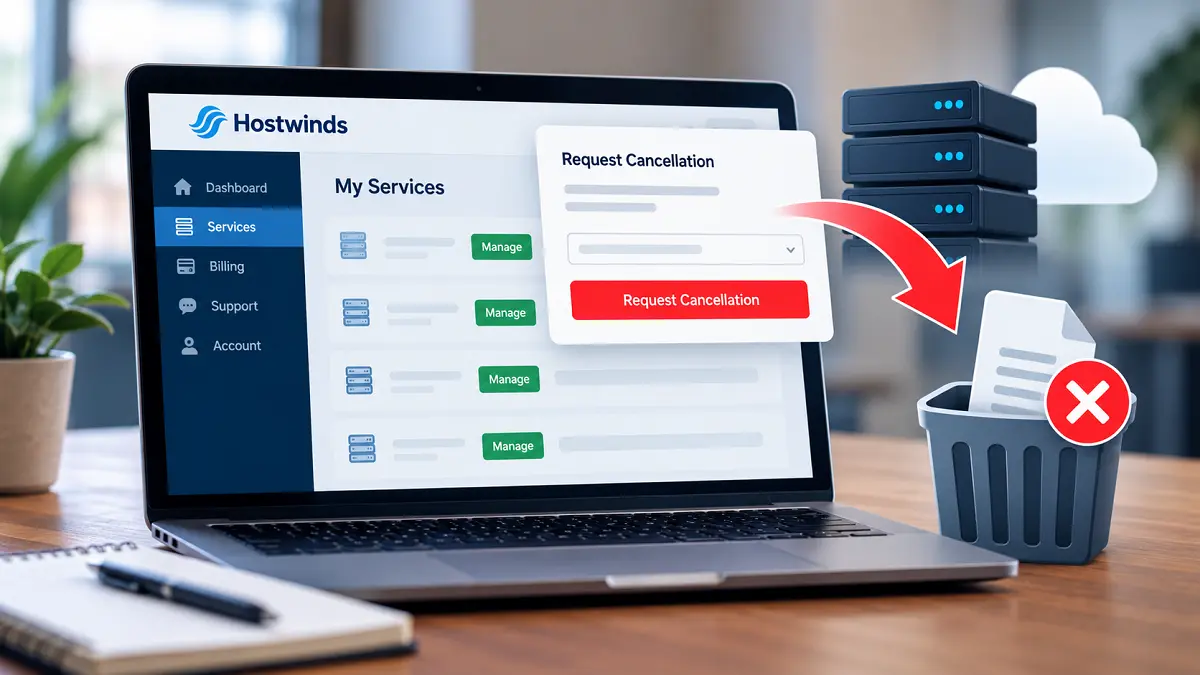 Key Takeaways: Canceling your Hostwinds service safely
- Hostwinds cancellations must be submitted from the Client Area. A support agent cannot cancel the service for you.
- Cancellation is immediate and cannot be undone. Data stored on the canceled service is permanently deleted.
- Object storage, volumes, snapshots, and ISOs are separate resources and are not automatically deleted when the main hosting service is canceled.
- Those leftover storage resources can continue generating charges, so check the Cloud Control Portal before you consider the account finished.
- Eligible refund requests must be made within 72 hours of the payment transaction and only after the service has been canceled.
Prefer watching over reading? Get a quick overview of how to cancel your Hostwinds subscription in this short video:
Canceling a web hosting service normally sounds simple. You stop the subscription, your current period ends, and you move on. That is not quite how Hostwinds works. Hostwinds itself says that a service cancellation is immediate, cannot be undone, and permanently deletes the data stored on the canceled service. At the same time, some data can be sitting somewhere else in your account and continue billing after the main service has disappeared. That combination is what makes a Hostwinds cancellation worth doing carefully. It is particularly important if you have a VPS, cloud server, or dedicated server. You may have databases, websites, email, backups, snapshots, storage volumes, configuration files, and other information spread across several parts of the Hostwinds system. So the cancellation button is not really the difficult part. The difficult part is making sure you have moved or saved everything before you press it, and then checking that nothing billable was left behind.
In this article
- How to cancel a Hostwinds subscription
- Hostwinds cancellation is immediate and permanent
- The Hostwinds storage issue people can easily miss
- How to delete Hostwinds object storage
- How to delete a Hostwinds snapshot
- Should you open a Hostwinds ticket when canceling?
- Can you get a refund after canceling Hostwinds?
- What to do before you cancel Hostwinds
- The bottom line on canceling Hostwinds
How to cancel a Hostwinds subscription
Hostwinds says customers must cancel their own services through the Client Area. According to its cancellation instructions, employees cannot cancel or delete services on behalf of a customer because of the sensitive nature of the stored data. The actual process is fairly short:- Log in to your Hostwinds Client Area.
- Click Services and then select My Services.
- You will see the products and services associated with your account. Find the one you want to cancel and click the Manage button.
- On the service dashboard, open the Actions menu and select Request Cancellation.
- A cancellation-reason dropdown will appear. Read the warnings carefully and then click Request Cancellation to complete the process.
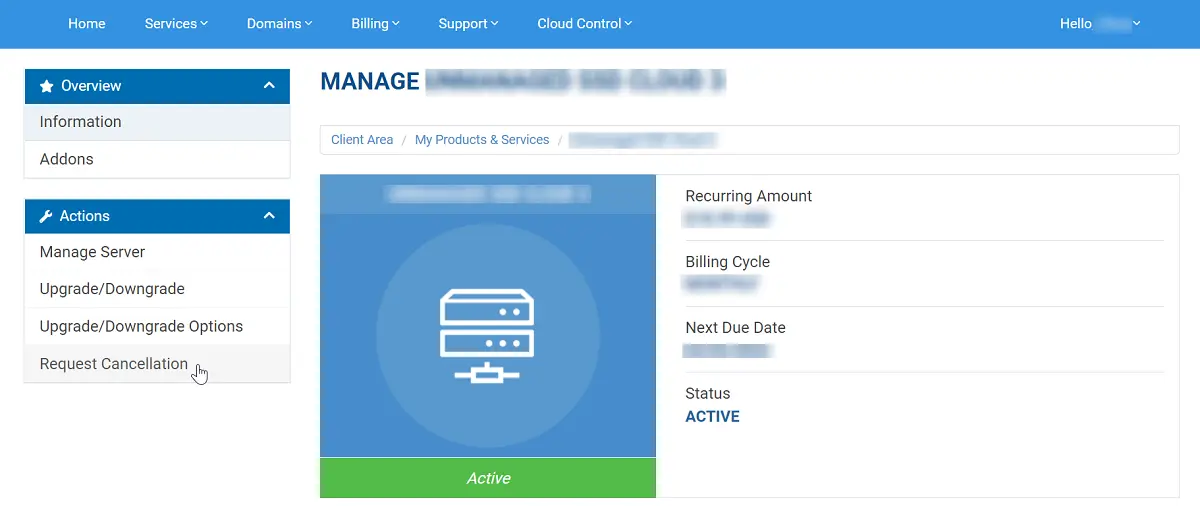 That is the official cancellation route. It is important not to assume that contacting support by chat or opening a ticket asking them to cancel the service has the same effect. Hostwinds specifically says its employees cannot cancel or delete services for customers.
There is another small but important distinction. Deleting a website, uninstalling WordPress, shutting down a virtual machine from inside the operating system, or removing files does not necessarily cancel the hosting product. The service itself must be canceled through the Client Area.
Before you do that, however, there is a much more important question.
Are you ready for the service to disappear immediately?
That is the official cancellation route. It is important not to assume that contacting support by chat or opening a ticket asking them to cancel the service has the same effect. Hostwinds specifically says its employees cannot cancel or delete services for customers.
There is another small but important distinction. Deleting a website, uninstalling WordPress, shutting down a virtual machine from inside the operating system, or removing files does not necessarily cancel the hosting product. The service itself must be canceled through the Client Area.
Before you do that, however, there is a much more important question.
Are you ready for the service to disappear immediately?
Hostwinds cancellation is immediate and permanent
This is the part that deserves your full attention. Hostwinds says that once a service is canceled, all data stored on that service will be permanently deleted and cannot be recovered. It also describes cancellation as an irrevocable action. In practical terms, don't think of the cancellation button as “turn off automatic renewal.” Think of it as “shut this service down now.” That distinction can be easy to miss if you have used other hosting companies where canceling simply prevents the next invoice. For example, suppose your WordPress site is running on a Hostwinds VPS and your annual term still has several months left. If you submit a cancellation request, you should not assume that the VPS will continue running until the end of that paid period. Hostwinds says the cancellation is immediate. Once that happens, anything that exists only on that server may be gone. For a website, that can include the files and database. For a VPS or dedicated server, there can be considerably more: application data, custom web-server settings, PHP configuration, cron jobs, SSL certificates, firewall rules, SSH keys, mail configuration, DNS information, and other server changes that are not recreated automatically on a new machine. This is why a proper backup matters so much. And don't make the common mistake of thinking that RAID is a backup. RAID can provide redundancy when a physical disk fails, but it is not an independent copy sitting somewhere outside the service. If the service itself is deleted, RAID does not save you. A simple analogy is keeping a spare key inside the house. It is certainly a spare key, but it is not much help if the house is destroyed. Back up first. Cancel second. For WordPress or another database-driven site, back up the database as well as the website files. For email, save anything that needs to be retained. For a VPS, save the important server configuration as well as the actual application data. Most importantly, keep at least one copy somewhere that is not inside the Hostwinds service you are about to destroy.The Hostwinds storage issue people can easily miss
There is a second part of the cancellation process that is even easier to overlook. Hostwinds says that certain storage services are separate from the main hosting service. Its examples include object storage, volumes, snapshots, and ISOs. Those resources are not automatically deleted when the associated hosting service is canceled. This makes sense from Hostwinds' point of view. A customer might cancel a VPS but deliberately want to keep its backup or snapshot. Hostwinds says it cannot simply guess what the customer wants done with separately stored data. From the customer's point of view, though, it creates an obvious potential problem. You can cancel the VPS, see that it is gone, and assume you have finished canceling Hostwinds. Meanwhile, a storage volume or backup is still sitting in the account. That storage can continue to produce charges.| Resource | What happens when the main service is canceled? | What you should do |
|---|---|---|
| Hosting service | The service is terminated and its stored data is permanently deleted. | Back up everything before submitting cancellation. |
| Object storage | Not automatically deleted. | Review it in Cloud Control and delete it separately if you no longer need it. |
| Volumes | Not automatically deleted. | Check whether any volumes remain and remove unwanted ones. |
| Snapshots | Not automatically deleted. | Review and delete snapshots that you no longer need. |
| ISOs | Not automatically deleted. | Check for any remaining billable resources. |
How to delete Hostwinds object storage
If you have used Hostwinds object storage for backups, don't assume that canceling your server removes those backups. Hostwinds says object storage must be deleted separately. It also warns that deleting object storage is permanent and the information cannot be retrieved afterward. That creates another situation where you should stop and think before clicking a button. If those backups are the only copy you have, deleting them could leave you with nothing. First download anything you may need in the future and store it somewhere outside Hostwinds. To reach the object-storage controls, Hostwinds instructs customers to log in to the Client Area and use the Cloud Control dropdown near the top of the dashboard. Select Cloud Portal.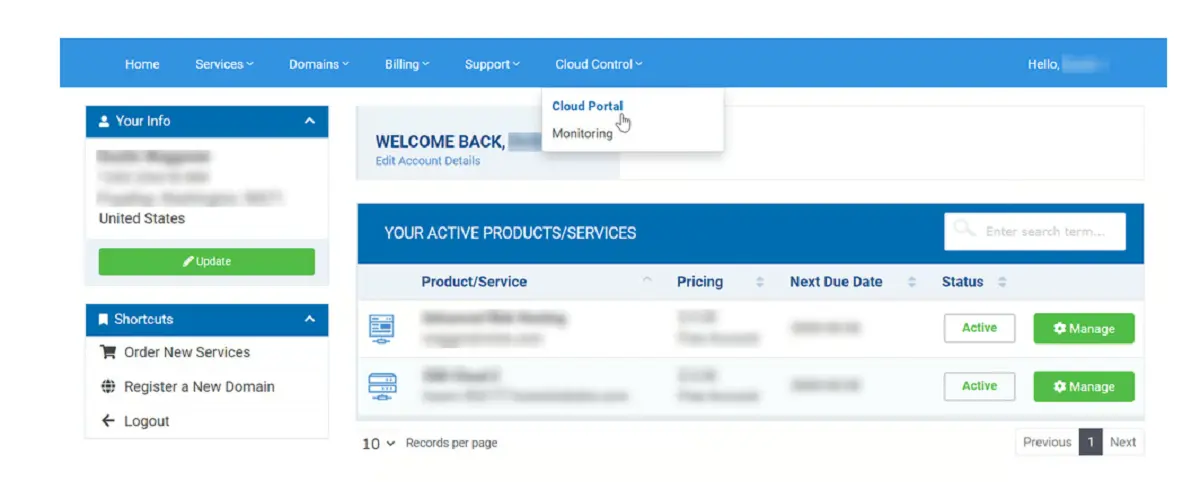 Inside Cloud Control:
- Open the Storage menu.
- Select Object Storage.
- Review the containers shown there.
- Check their names, sizes, and locations so you know what you are deleting.
- Click Delete beside a container you no longer need.
- Confirm the deletion when prompted.
How to delete a Hostwinds snapshot
Snapshots are another resource that can survive the cancellation of the main service. A snapshot is basically a saved image of a server at a particular point in time. It can be useful when you want to roll a system back or create another server from the saved image. But if you are leaving Hostwinds and don't want the snapshot anymore, you need to remove it separately. Hostwinds says snapshot deletion is permanent. So, again, do not delete the only copy of something you may later need.For reference, Hostwinds also provides an official snapshot management guide.
From the Client Area, open Cloud Control and then enter the Cloud Portal. From there:- Open the Storage menu.
- Select Snapshots.
- Find the snapshot you want to remove.
- Open its Actions menu.
- Select Delete.
- Click Confirm to complete the deletion.
Should you open a Hostwinds ticket when canceling?
You don't need a support ticket to perform the actual service cancellation. Hostwinds provides a cancellation function in the Client Area for that. However, a ticket can be useful when there is a billing question, something is unclear, or you want a written record of a conversation with the company. Hostwinds uses tickets for sales, billing, and technical support. When you open one, you select the appropriate department, enter your subject and message, and submit the ticket. Hostwinds then assigns a ticket number and sends a notification to the account's primary email address and authorized sub-accounts. That paper trail can be useful. For example, imagine that you canceled the main VPS, but you later discover an unexpected storage charge. You now have a cancellation record and can ask exactly what resource generated the charge. Hostwinds says you can also manage tickets from the support portal or reply directly to ticket emails. Ticket statuses can include Open, On Hold, In Progress, Answered, Customer-Reply, and Closed. There is one useful detail about the On Hold status. Hostwinds says that an on-hold ticket may appear as closed when viewed, even though it is still waiting in the support queue. So don't automatically assume that an “On Hold” ticket has been permanently closed. A ticket is therefore useful as documentation and for resolving problems. It is not a substitute for the actual cancellation procedure.Can you get a refund after canceling Hostwinds?
Hostwinds says some eligible services can receive a prorated refund, but there is a strict time limit. The refund request must be made within 72 hours of the payment transaction. Hostwinds defines the transaction time as the time the payment or charge occurred. For many customers, that will be the original purchase or renewal date. There is also a specific order to the process. You must cancel the service first. A refund request submitted before cancellation is considered invalid, according to the published policy. So the basic sequence is:- Cancel the service in the Client Portal.
- Submit the refund request.
- Make sure the request is still within the 72-hour window.
What to do before you cancel Hostwinds
If the hosting account contains anything important, I would not start the cancellation process until these basic jobs are finished.- Move the website to the new host and test it.
- Export the database, not just the website files.
- Save important email or migrate the mailboxes.
- Copy important VPS or dedicated-server configuration files.
- Save DNS records and other settings you may need when rebuilding the service.
- Make sure you have a backup stored outside Hostwinds.
- Check the Cloud Control Portal for volumes, object storage, snapshots, and ISOs.
- Decide which separately stored data you want to keep and which you want to delete.
- Check recent invoices and the date of your latest payment or renewal.
- If you may request a refund, note the exact transaction date and time.
The bottom line on canceling Hostwinds
Hostwinds does not make the actual cancellation procedure especially complicated. Log in, go to Services > My Services, click Manage, choose Actions > Request Cancellation, select your reason, and confirm. The danger is everything surrounding that button. Hostwinds says cancellation is immediate and irreversible. Data stored on the canceled service is permanently deleted. Separately stored object storage, volumes, snapshots, and ISOs are not automatically deleted and can continue generating charges. That means there are really two separate jobs when leaving Hostwinds. First, protect your data. Back up everything and make sure the replacement environment works. Second, clean up the account. Cancel the main service, then check Cloud Control for storage resources that are still active. And if you have just been charged and want a refund, don't forget the 72-hour deadline. I would also keep the cancellation confirmation and any relevant support tickets. If something goes wrong later, having the dates, service information, and written communications makes the situation much easier to sort out. So, is canceling Hostwinds difficult? No. Can it be a lot of work? Yes. Is it risky? Yes. The safest approach is to treat the cancellation as a real server shutdown. Once you look at it that way, the potential problems become much easier to avoid.Interested in HONEST shared web hosting?
Try HostiFul free for 30 days. No credit card required.
We also offer an affordable fully managed alternative to VPS or Dedicated hosting.
Try HostiFul free for 30 days. No credit card required.